Scheduling WhatsApp Messages on iOS
Published Sep 27, 2023
Last edited Mar 31, 2026
Scheduling WhatsApp Messages on iOS#
WhatsApp, while a powerhouse in instant messaging, does not inherently provide a message scheduling feature. However, with a little ingenuity involving the iOS shortcuts and email automation, we can work around the existing features. This article will walk you through the steps to schedule WhatsApp messages on your iOS device by using the automation features present in the email app.
Requirements#
- An email account. Preferably a google one to use the
+symbol. - An iPhone.
Setup#
Step 1: Search contact Shortcut#
- Import this Shortcut that searches for a contact, given a string, and returns it’s phone numbers
Step 2: Create an iOS Shortcuts automation#
-
Open Shortcuts App : Navigate to the Shortcuts app on your iOS device.
-
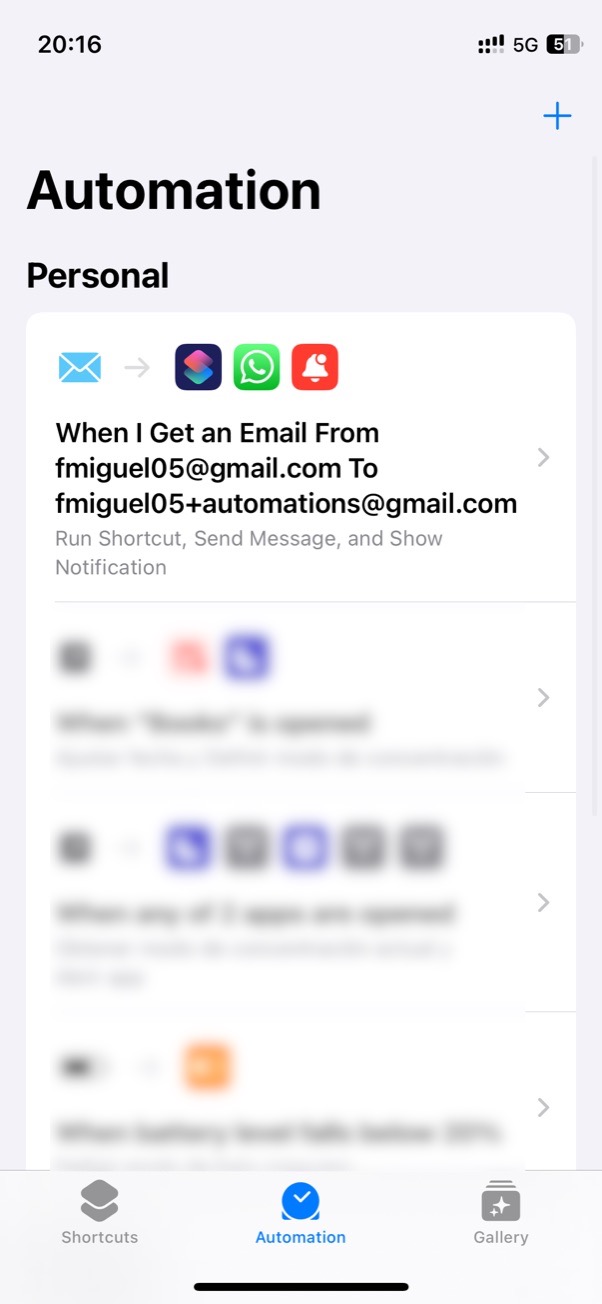
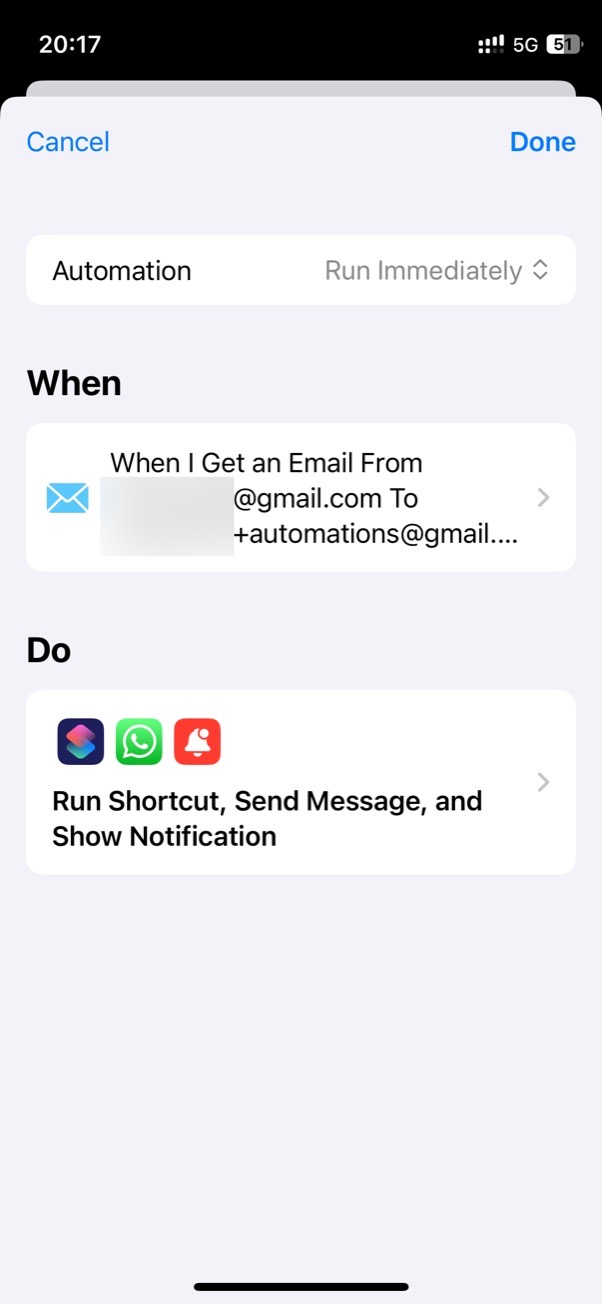
Create a Personal Automation : Tap on 'Automation' at the bottom, then tap on '+', and choose 'Create Personal Automation'.
-
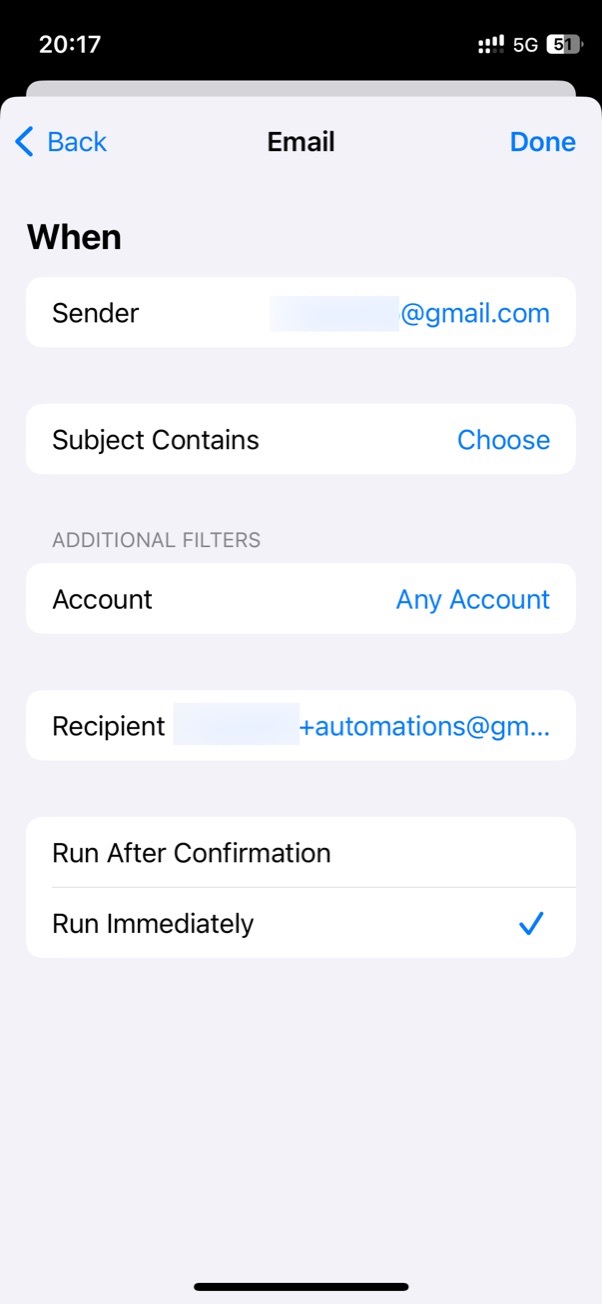
Trigger : Choose 'Email' as the trigger and set it to look for emails from your Gmail account with the recipient
yourgmailusername+automations@gmail.com. -
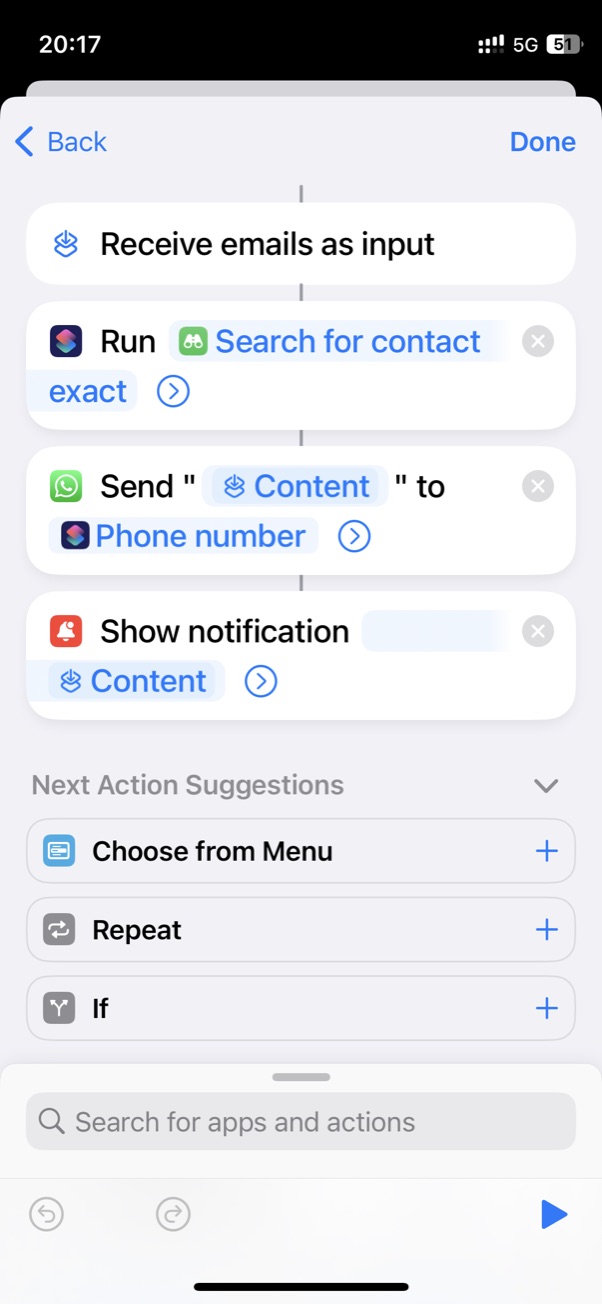
Add Actions :
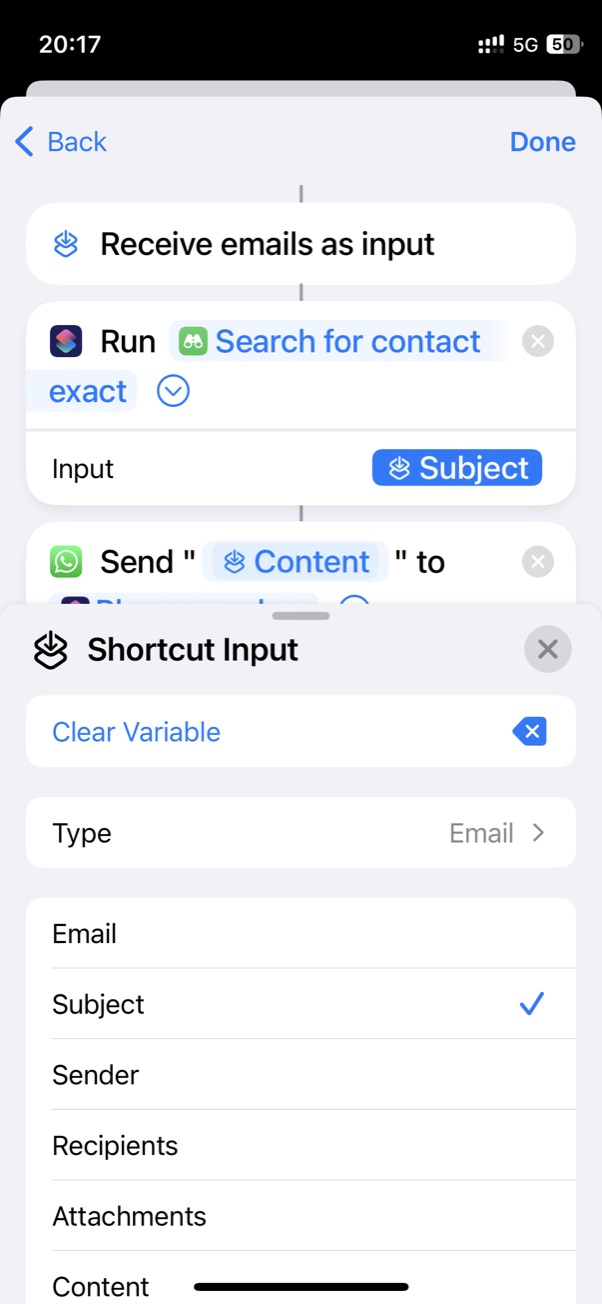
- Search for contact given passing the subject of the message to the Search contact exact shortcut.
- Add Send Message via WhatsApp action
- For the recipient, use the output of the Search contact exact action
- For the message content, use the input email Content.
-
Finish Setup : Complete the setup by saving the automation. Now, when your scheduled email is received, it will trigger the iOS shortcut, which in turn will send the message via WhatsApp to the intended recipient.
Note : Before relying on this method for critical communications, it's a good idea to test it out a few times to ensure everything works seamlessly. Furthermore, the recipient's name in the email subject should match their name saved in your contacts for the automation to find and send them the message correctly.
💡 > While your setting variables in iOS shortcuts the system variables can have many different attributes, you want to make sure you are using the right one. In this example, for a variable Contact you want to make sure wether you are using the Phone Number , the Name , or the Full Name of that contact.
Scheduling#
-
Compose an Email : Open your email app on your iOS device. Start composing an email.
-
Recipient Address : For the email recipient, use a special format of your Gmail address:
yourgmailusername+automations@gmail.com. For example, if your Gmail address isjohndoe@gmail.com, you will send it tojohndoe+automations@gmail.com. -
Email Subject and Body :
- Subject : This will be the name of the contact to whom you want to send the WhatsApp message.
- Body : Type the message you want to send on WhatsApp.
-
Schedule the Email : Most modern email apps have a feature that lets you schedule emails for future sending. Choose your desired time and date, and then schedule the email. You can do this with the Gmail native app or web app as well as with the iOS Mail app.
💡 > Note that iOS doesn’t support push messages for GMail accounts, so the automation could be delayed depending on the sync settings for your GMail account.